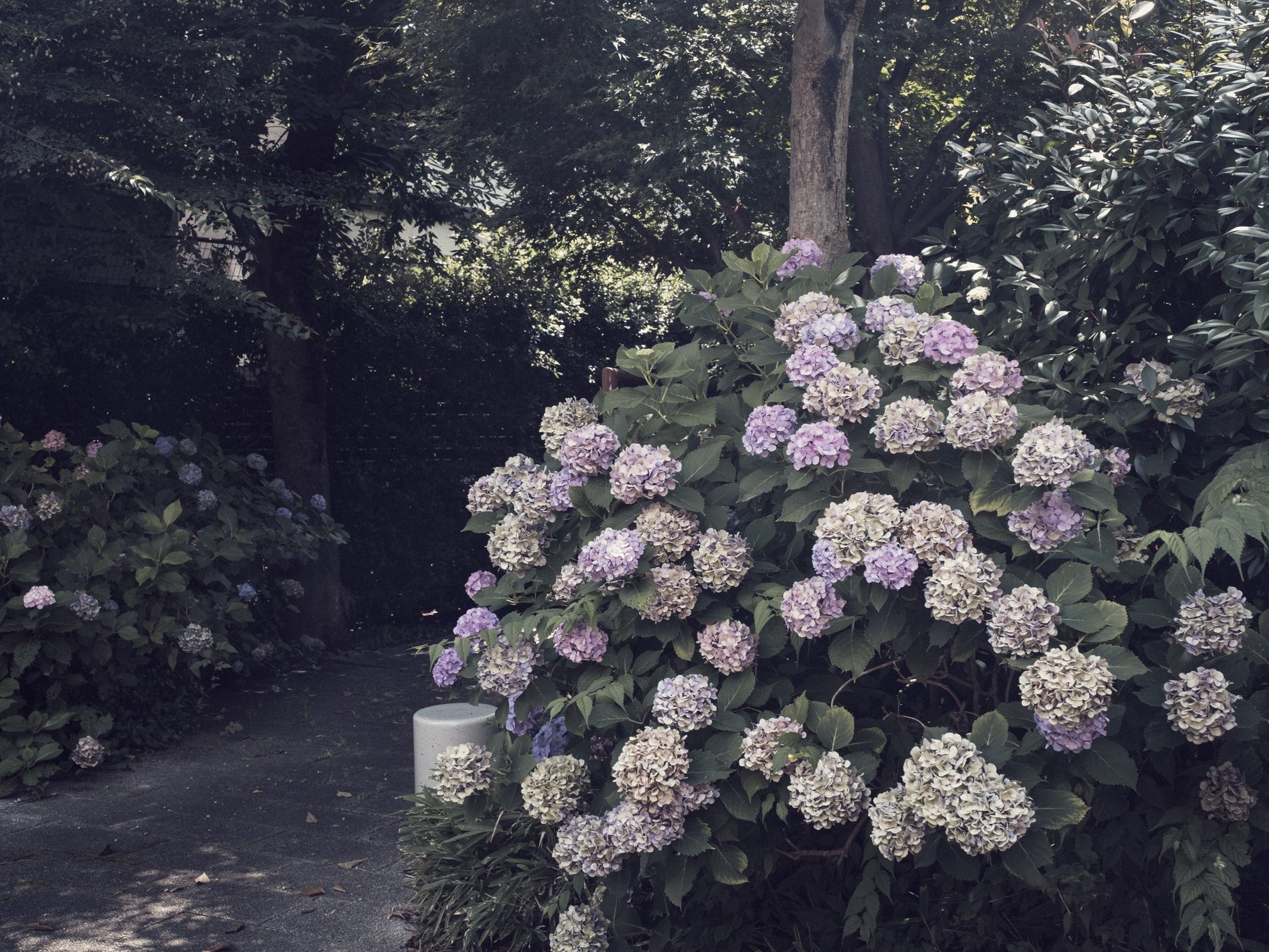
Foliage often looks wrong after a preset because several causes are mixed together: the profile changed the starting render, white balance moved the whole scene, yellow-green hues became too similar, or global saturation made every leaf equally loud.
Do not begin by dragging the Green Hue slider. Identify the light and material first. New leaves, old leaves, glossy shrubs, moss, and reflected shade should not collapse into one branded color.
Fix profile and white balance first
Compare the intended Camera Matching or Adobe Raw profile before making HSL changes. Profiles alter the color foundation without moving the other edit sliders, so a later profile swap can invalidate precise color work.
Set white balance from a believable neutral or from the remembered light. A magenta Tint correction may clean one green surface while pushing pale flowers or concrete too far, so judge more than foliage.
Separate yellow from green
In the Color Mixer, reduce Saturation only for the range that dominates. Green foliage often contains substantial yellow; changing Green alone may leave the brightest leaves untouched or create a split between neighboring plants.
Use the targeted adjustment tool to discover which channels the visible leaves occupy. Make a small Hue move only when the relationship is wrong, then use Luminance to restore separation between sunlit and shaded foliage.
Use Point Color for one troublesome range
When a narrow fluorescent-looking green remains, sample it with Point Color and limit the affected range. Adobe’s Visualize Range option helps show whether the adjustment also reaches signs, clothing, painted metal, or flower color.
Keep the range narrow enough to solve the problem but wide enough to avoid hard color boundaries. Zoom out frequently; a correction that looks clean at 100% can make the whole garden lifeless.
Let light create variation
Use local exposure or a gentle mask when the real issue is a flat patch of foliage, not its hue. Darkening the background slightly can separate a plant without making its green unnaturally saturated.
Compare several photographs from the same walk. Save a preset only for repeatable color direction; leave scene-specific green masks outside it.
Sources and further reading
References for the context and techniques discussed in this field note.